c4d thumbnail doesn't show on MacOS on a MBP
-
-
@Tisi whaaaaaaaaaaa! Please make it happen somehow! What a hero. And what a shame to Maxon and their speed they are providing

Liebe Grüße aus Berlin
-
Hey, I think installing (=dragging it into your Applications Folder) might work, you probably have to do the whole right-click "open anyway" thing for unsigned apps because macos won't let you just open it. fingers crossed*
https://www.dropbox.com/t/R7IZVTxoLBOsPsrc
-
@Tisi It works great. Thank you so much.
-
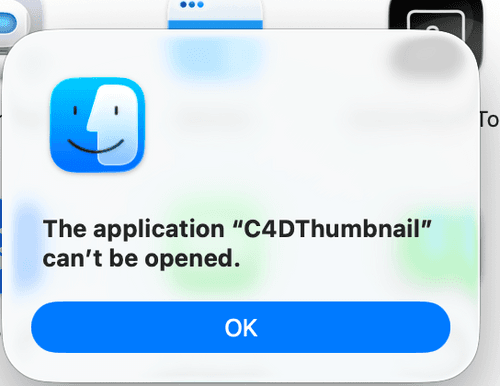
@Tisi Thanks a lot for preparing. Unfortunately I can't even open the app on my Mac (Tahoe, M4). Apps are allowed from anywhere and I also tried some permission things in the terminal.
-
Tested on M1 Macbook and M4 Mac Studio, both on Tahoe. Both showing same error.
Are you guys on Sillicon and Tahoe?OK IT WORKED WITH FOLLOWING:
4. Force Executable Status on the Main Binary
Sometimes the internal app layout doesn't register correctly. If you haven't already applied permissions directly to the internal code:
- Right-click C4DThumbnail.app in Finder and choose Show Package Contents.
- Navigate into Contents > MacOS. You should see a file named
C4DThumbnailinside. - Open Terminal, type
chmod +x, and drag that internalC4DThumbnailfile into the terminal window, then hit Enter.
Do you know if this app was built specifically for Apple Silicon (M-series chips) or Intel? If the architecture doesn't match your specific Mac hardware, that can also trigger this generic "can't be opened" alert.
-
But unfortunately no C4D Thumbs are showing. Cleared cache already etc. What could be the problem?
This is showing when I click now on the installed app:

-
@whereas-stuff From Claude.ai :
Quick clarification up front: this is not a regular app — it's a modern macOS Quick Look extension (an
.appexof typecom.apple.quicklook.thumbnail) bundled inside the.app. That means it registers itself automatically as soon as the containing app is on disk and has been launched once. Note that the old~/Library/QuickLookfolder does not apply here — that's for the legacy.qlgeneratormechanism. Here's how to set it up (run these in Terminal):- Move the app into Applications so LaunchServices keeps it registered:
mv ~/Downloads/C4DThumbnail.app /Applications/- Clear the Gatekeeper block. Heads up: this build is signed with a personal Apple Development certificate, not a Developer ID, and it isn't notarized — so macOS will flag it as coming from an unidentified developer. Strip the quarantine attribute:
xattr -dr com.apple.quarantine /Applications/C4DThumbnail.appIf macOS still refuses: System Settings → Privacy & Security → "Open Anyway".
- Launch the app once to trigger the extension registration:
open /Applications/C4DThumbnail.app- Confirm the system sees the extension, and enable it if needed:
pluginkit -m -p com.apple.quicklook.thumbnail | grep -i tisi
pluginkit -e use -i io.tisi.C4DThumbnail.Extension
(The first command should list
io.tisi.C4DThumbnail.Extension; a leading+means it's already active.)- Flush the thumbnail cache and restart Finder:
qlmanage -r qlmanage -r cache killall Finder- Test it on an actual file (swap in a path to one of your own
.c4dfiles):
qlmanage -t -s 512 -o ~/Desktop "/path/to/a_file.c4d"That drops a test thumbnail on your Desktop. Otherwise, just open a folder of
.c4dfiles in Finder using Gallery or Icon view.Two honest caveats: thumbnails will only show up for
.c4dfiles that actually contain an embedded JPEG preview (this depends on your Cinema 4D save settings), and since the app isn't notarized, a future major macOS update could re-trigger a Gatekeeper block. If registration gets stuck,killall -KILL pkd(the PluginKit daemon) forces it to re-scan.
-
Unfortunately I think either the Mac or the OS is not supported
This I get on restart: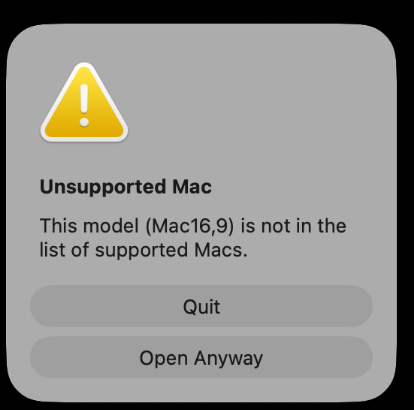
On what Mac / OS did you got it to work?
It's installed and I see it in the extensions. But no thumbnail no matter what I do. -
@whereas-stuff M3 max - Tahoe
-
I did a lot of Claude/Gemini things also everything listed above, nothing worked and on startup it still shows my Mac is unsupported. If you find time @Tisi, maybe you can adjust the code to include all Mac models

-
@Tisi OMG works fine on MBP m5 max Tahoe 26.5 .
I AM CRYING !!!!!!!!!!!!! I can't believe it.
Thank you so much for this. you did what MAXON didn't almost 3 years now. really I am speechless.
A big shame for Maxon who takes our good money and doesn't care about us.
You are the man for the decade for me.
I owe you a tone.
BIG THANKS!!!!!!!!!!!!!!!!!
here is an image on my Mac
https://app.box.com/s/lppitwr0aujuycp1n5vtw4onb2gdgwf7 -
hey, thanks everybody - happy to help

@whereas-stuff hm not sure what's wrong, I did not include any model restrictions... maybe something got mixed up, can you try with this again:
https://www.dropbox.com/scl/fi/u9l5h0mt32t4zmjcj89ta/C4DThumbnail-1.0-build2-devsigned.zip?rlkey=fvwjsh9bba456463wssxxtot7&dl=0codex recommends:
removing the current one with:
rm -rf /Applications/C4DThumbnail.appthen copying the new .app to /Applications and after that:
qlmanage -r
qlmanage -r cache
killall FinderShould work, your 16,9 is a mac studio so not an old machine... here I have an macbookpro m3 max, any other studio owners tried and got it working? Codex says your dialogue might be wrongly diagnosed by gatekeeper or another tool, honestly I have never even seen that kind of dialogue before in macos. are you using any thirdparty security tools or similar that might interfere?
-
From Claude.ai :
① Réponse forum pour whereas-stuf
Hey @whereas-stuf — that "unsupported Mac" message is misleading; it's almost certainly not a real hardware incompatibility. I had the actual app binary analyzed: it's a universal build (Apple Silicon + Intel) with a minimum of macOS 13, and there is no model/architecture/OS check anywhere in the code. So your M1 and M4 are fine in principle — what you're hitting is a code-signature/Gatekeeper rejection that macOS is reporting with a confusing dialog.
Important: the
chmod +xon the inner binary that got passed around earlier in this thread is the likely culprit. Modifying that file breaks the app's code signature, and on Apple Silicon a binary with a broken signature literally can't launch (the kernel kills it) — which surfaces as exactly these "can't be opened" errors. So don't do that step.Try this from a fresh download (don't touch anything inside the bundle):
rm -rf /Applications/C4DThumbnail.app
# copy the freshly downloaded .app into /Applications, then:
xattr -dr com.apple.quarantine /Applications/C4DThumbnail.app
codesign --force --deep --sign - /Applications/C4DThumbnail.app
open /Applications/C4DThumbnail.app
qlmanage -r && qlmanage -r cache && killall Finder
The
codesign --sign -line re-seals it with an ad-hoc signature, which is what Apple Silicon needs to run it locally after the original seal was disturbed.One more thing to check: are you running any third-party security software (CleanMyMac, Intego, Malwarebytes, an MDM profile from work, etc.)? Those can intercept the launch and throw their own odd dialog. Worth temporarily disabling to test.
Let us know which Mac/OS it finally works on — works here on M3 Max / Tahoe.
② Note technique pour Tisi (Matthias Lein)
@Tisi — quick heads-up on why it works for some of us and throws "can't be opened / unsupported" for others. It's not your code (no hardware check in there, it's a clean universal binary). It's the signing.
The build is signed with an Apple Development certificate, it carries the
get-task-allowentitlement, and there's no provisioning profile in the bundle. That's a debug build: it runs reliably on your own machine, and on other Macs only if the user does the "Open Anyway" dance and nothing disturbs the signature. Any post-download tweak (like thechmod +xadvice floating around) invalidates the seal, and on Apple Silicon an invalid signature = won't launch at all. Hence the "works on some Macs, not others" pattern.The durable fix is to ship it as a proper distribution build:
- Enroll in the Apple Developer Program ($99/yr) if you haven't — you need a Developer ID Application certificate (not the Apple Development one).
- Build for Release with Hardened Runtime enabled, and remove
get-task-allow(Xcode does this automatically for Release/Developer ID). - Sign with Developer ID, e.g.
codesign --force --options runtime --deep --sign "Developer ID Application: Your Name (TEAMID)" C4DThumbnail.app - Notarize: zip it, submit with
xcrun notarytool submit C4DThumbnail.zip --apple-id … --team-id … --password … --wait - Staple the ticket so it works offline:
xcrun stapler staple C4DThumbnail.app
After that, Gatekeeper accepts it everywhere with a normal double-click — no Terminal, no quarantine stripping, no broken-seal issues. Easiest path is to let Xcode's Archive → Distribute App → Developer ID flow do all of steps 3–5 for you.
(For what it's worth: huge thanks for actually solving this — two hours of vibecoding beat three years of Maxon tickets.)
-
@Tisi GREAT! THANKS! It has worked flawlessly with your updated version and steps you have described!

-
What a relief to see the thumbnails again ..... Jesus
Honestly... @noseman you should at least share these experiences with someone in charge at Maxon. As @Tisi already pointed out the whole idea of the subscription was to be quicker. Of course we all understand it's a big program. But now we had a "little" bug which affects daily work fixed by a user in under 1 day of work. Under 1 day what Maxon couldn't fix in over multiple years!
-
Congrats ! Had few try before it works but it did in the end. Thaaaaanks!
-
@Tisi Thank you for your work on this issue. I was able to successfully use it and am seeing QuickLook previews on all my old C4D files again!
-
New release appears to have this fix.
Shame on Maxon that its users had to be the one to find a fix; only took .. what, like 3 years? After goodness knows how many folks filed bug reports about this? I feel like a fool that I pay so much money for a software company that behaves in this way.
Thanks Tisi. Hats off.
-
Confirming that Cinema 4D 2026.3.1 has fixed the issue for Apple Silicon. On my Intel Mac Pro 7,1 the issue persists even after installing the wonderful extension created by @Tisi.